Short on time?Analyze this prompt guide and get the key conclusions
Which version should you use?
| Use | When |
|---|---|
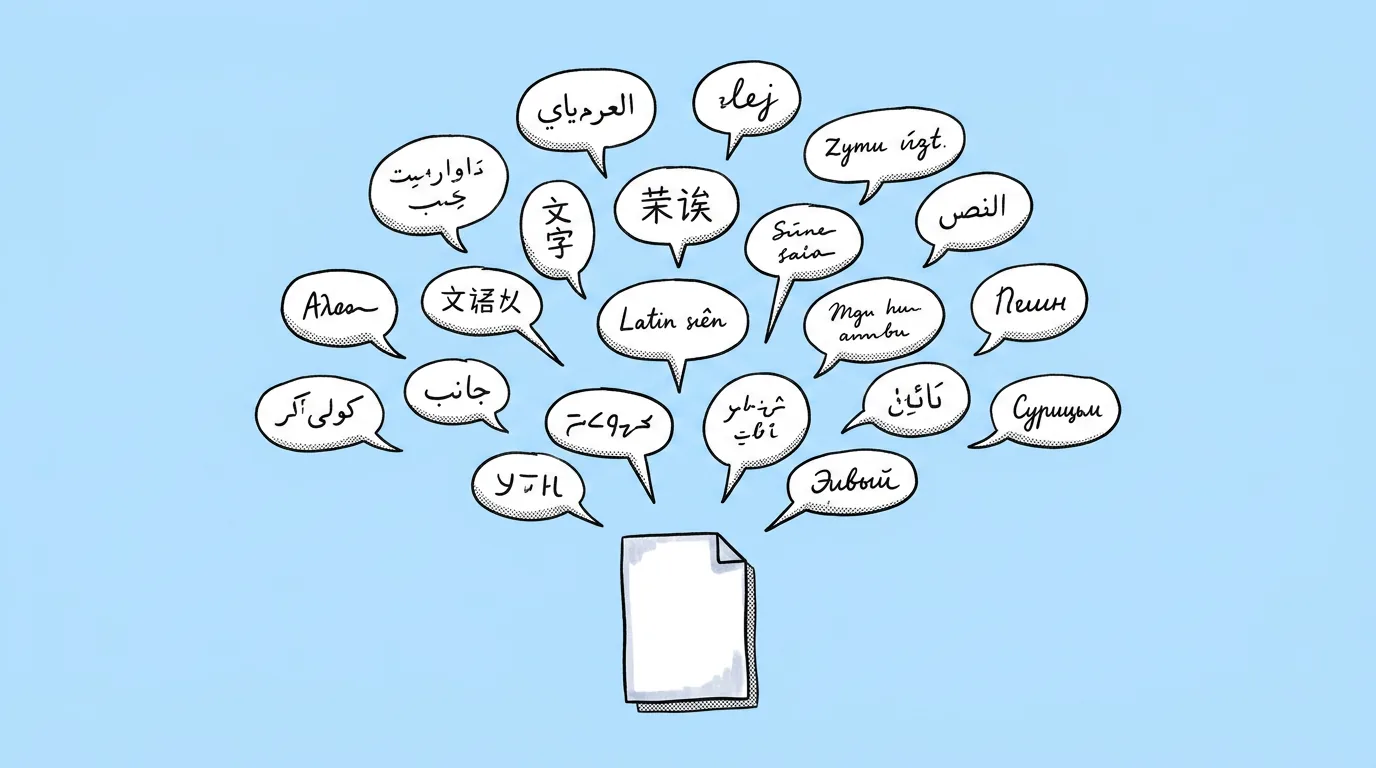
| Many languages | Fast drafts and reviews: see every market's version in one pass. |
| With your own translation | Final, ship-ready assets where your localization team has already approved the copy. Every language goes out with the exact wording you signed off. |
What breaks, and how do you fix it?
Long languages like German overflow their space. Text shrinks unevenly or fonts change. Non-Latin scripts, Arabic right-to-left and CJK, render wrong. And game terms or brand names get translated when they shouldn't.
- Draft fast, finalize with approved copy. Use the many-languages prompt for drafts, then the own-translation prompt for anything that ships.
- Check length before you generate. Ask the agent which translated words run longer than the original and whether shorter alternatives exist.
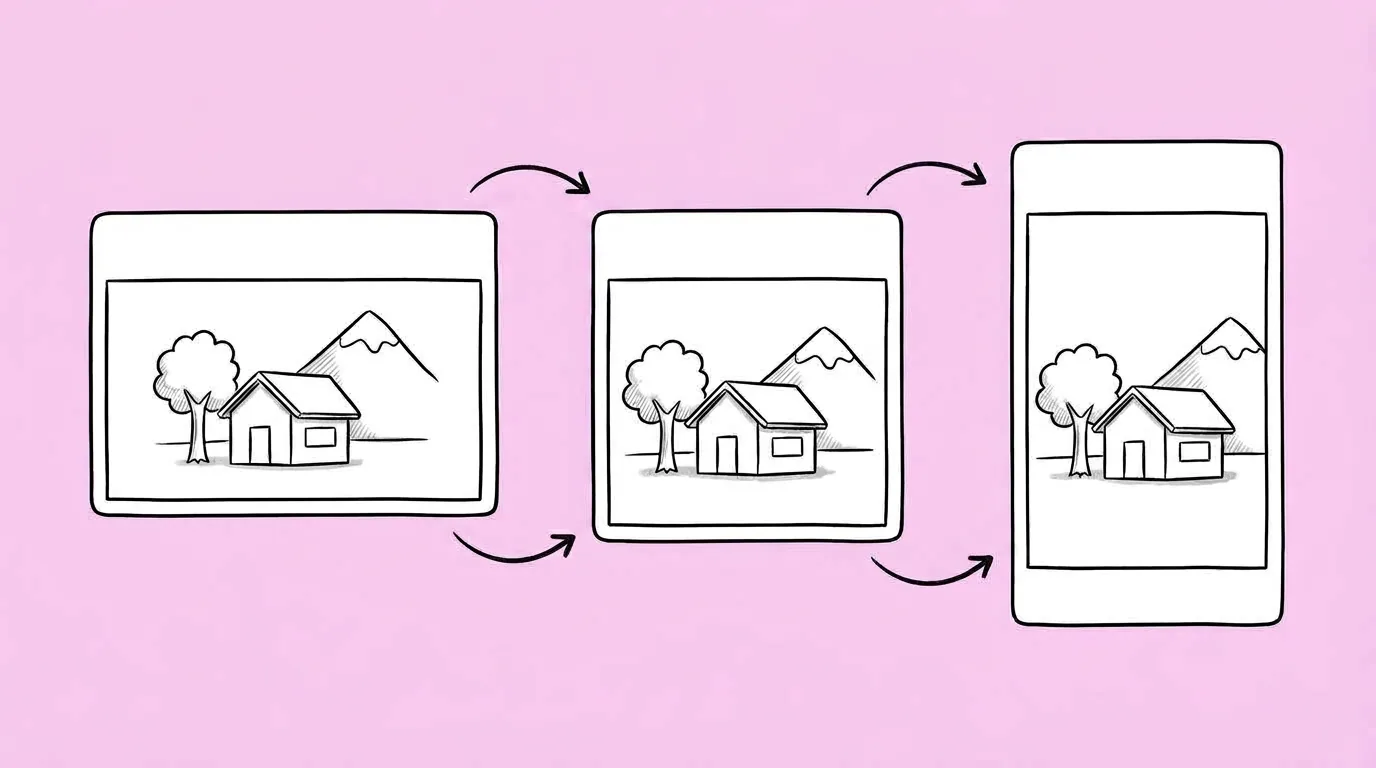
- Decide per asset: fit or expand. Ask for the text to fit the existing space, or for buttons, banners and text boxes to expand so the full translation fits.
- Paste the approved translation exactly, and flag any text that must stay unchanged, like the game's name.
- Save your language list and do-not-translate terms as a skill.
- Test models on non-Latin scripts first. Text rendering varies a lot between models. Compare image models helps.
FAQ
Can I ship the machine-translated version?
+
For drafts and internal reviews, yes. For anything players see, run the own-translation prompt with copy your localization team approved.
Does it handle right-to-left languages?
+
It can, but results vary by model. Test Arabic and Hebrew assets on two or three models before a full batch.
Will it translate my game's name?
+
Not if you tell it not to. List do-not-translate terms in the prompt or in a saved skill.