
What to fill in
| Bracket | What to put | Example |
|---|---|---|
| [@character name] | Call the character with @ so Genie uses its saved look. | @Chef Leo |
| [placement] | Position and scale relative to something already in the scene. | "standing to the left of the fountain, about as tall as its top tier" |
When do you use it?
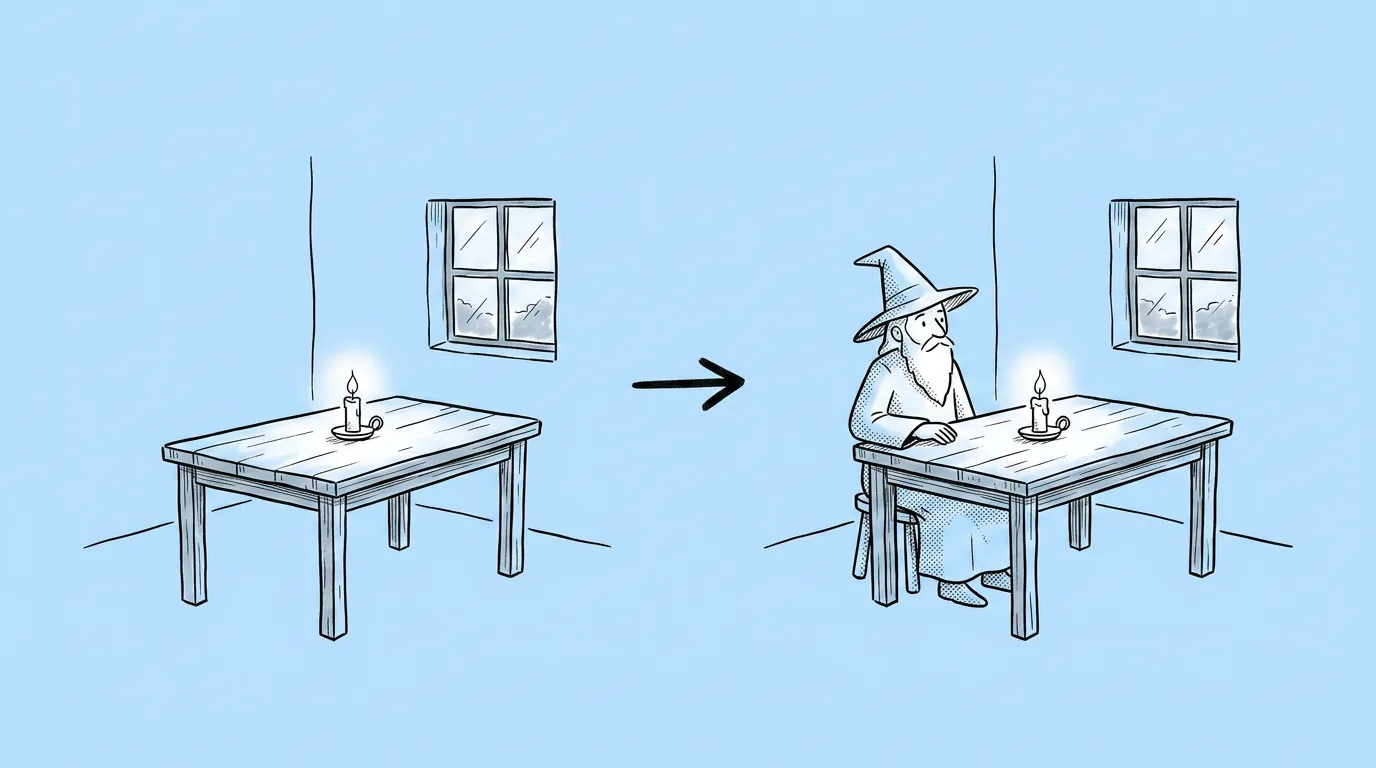
When the scene already exists and the character doesn't. The event background is approved, the store banner layout is locked, the CRM template is set. You need the hero in it by tomorrow, and a fresh illustration would take a week.
What breaks, and how do you fix it?
Lighting and shadows don't match the scene, so the character looks pasted on. Scale is off. Small design details of the character change.
- Call your character with @. That's what keeps the design details on-model.
- Give placement and scale relative to the scene. "Next to the door, reaching the handle" beats "on the left".
- State the light direction. "Warm light from the upper right, shadow falling left" makes the character sit in the scene instead of on top of it.
Variations to try
Add @[character] to the attached scene, sitting on the bench in the foreground, reading a map, lit by the lantern.
Add @[character] to the right third of the attached banner, waist up, leaving the left two thirds clear for text.
FAQ
Does the character need to be set up in Genie first?
+
Yes. The prompt uses @ to call a character the agent is familiar with. That's what keeps it on-model.
Can I add more than one character?
+
For two or more, use Multi-character scene, which is built to keep each one distinct.
Will it change the rest of the scene?
+
The prompt keeps the scene and only adds the character. If something else shifts, say "keep the rest of the image exactly the same".