
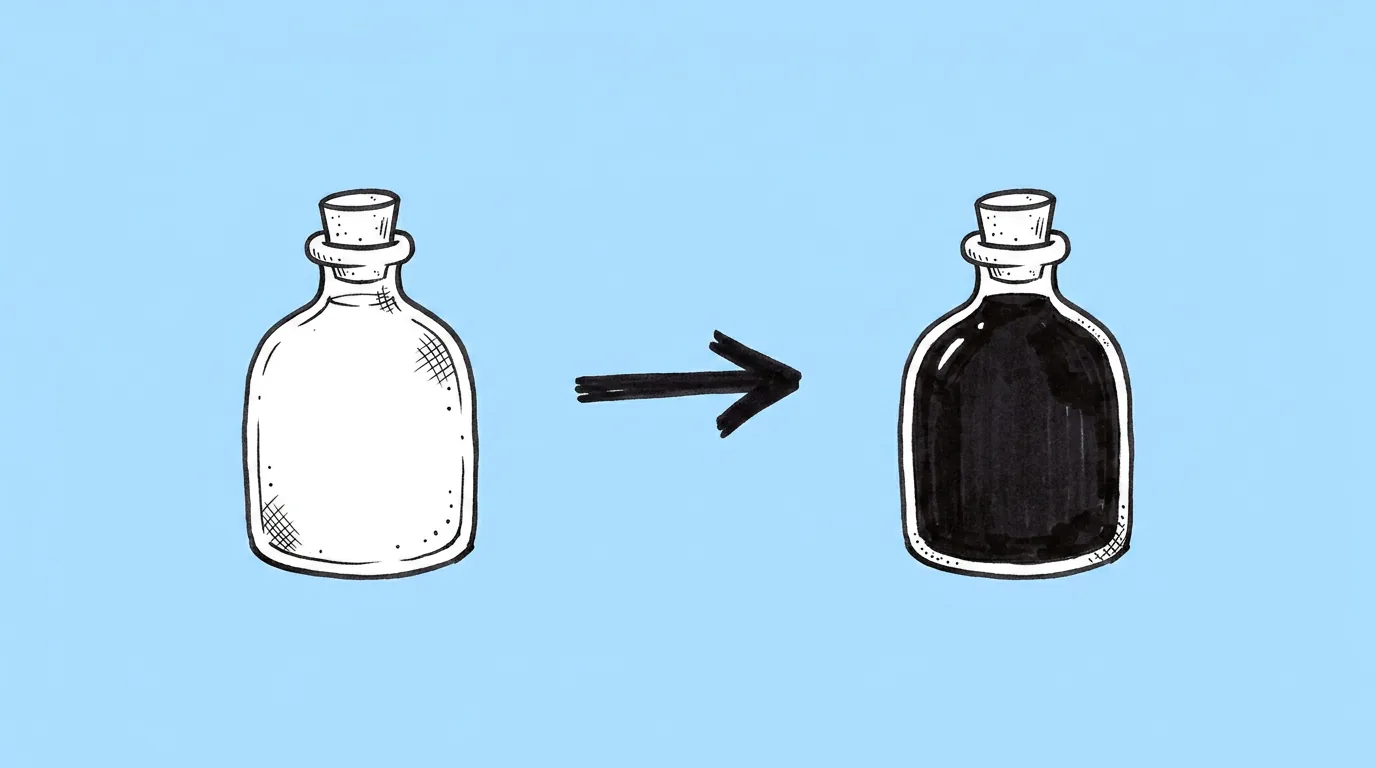
What to fill in
| Bracket | What to put | Example |
|---|---|---|
| [area] | The full asset, or exactly which part. | "the cape and the shield's border only" |
| [color] | A precise color: a hex code or a specific name. | "#B3122E" or "deep crimson" |
When do you use it?
When the asset is right and only the color needs to change. Blue team and red team. A gold version for the VIP offer. A winter palette for the event. Four colors of the same bundle to see which one converts.
What breaks, and how do you fix it?
The color bleeds into areas you didn't name. Shading and highlights get flattened.
- Name the exact area. "The cape" is clearer than "the clothes".
- Give a precise color. A hex code or "deep crimson" beats "red".
- Ask for several colors in one request. You get your A/B variants at once.
Which tool should you use?
For one quick recolor, use Magic edit on the canvas. For several variants at once, use Genie's agent.
Variations to try
Recolor the background of the attached offer art into four versions: #1E88E5, #43A047, #8E24AA and #F4511E. Keep everything else the same.
Recolor the armor in the attached image to blue for one version and red for the other, keeping the metal shading.
FAQ
Will it keep the shading?
+
That's the goal. If highlights flatten, add "keep all shading and highlights" and rerun.
Can I recolor several areas in different colors?
+
Yes. Name each area and its color in the same request.
Does it work on characters?
+
Yes, for hair, outfits and accessories. Name the area so skin and eyes stay the same.