
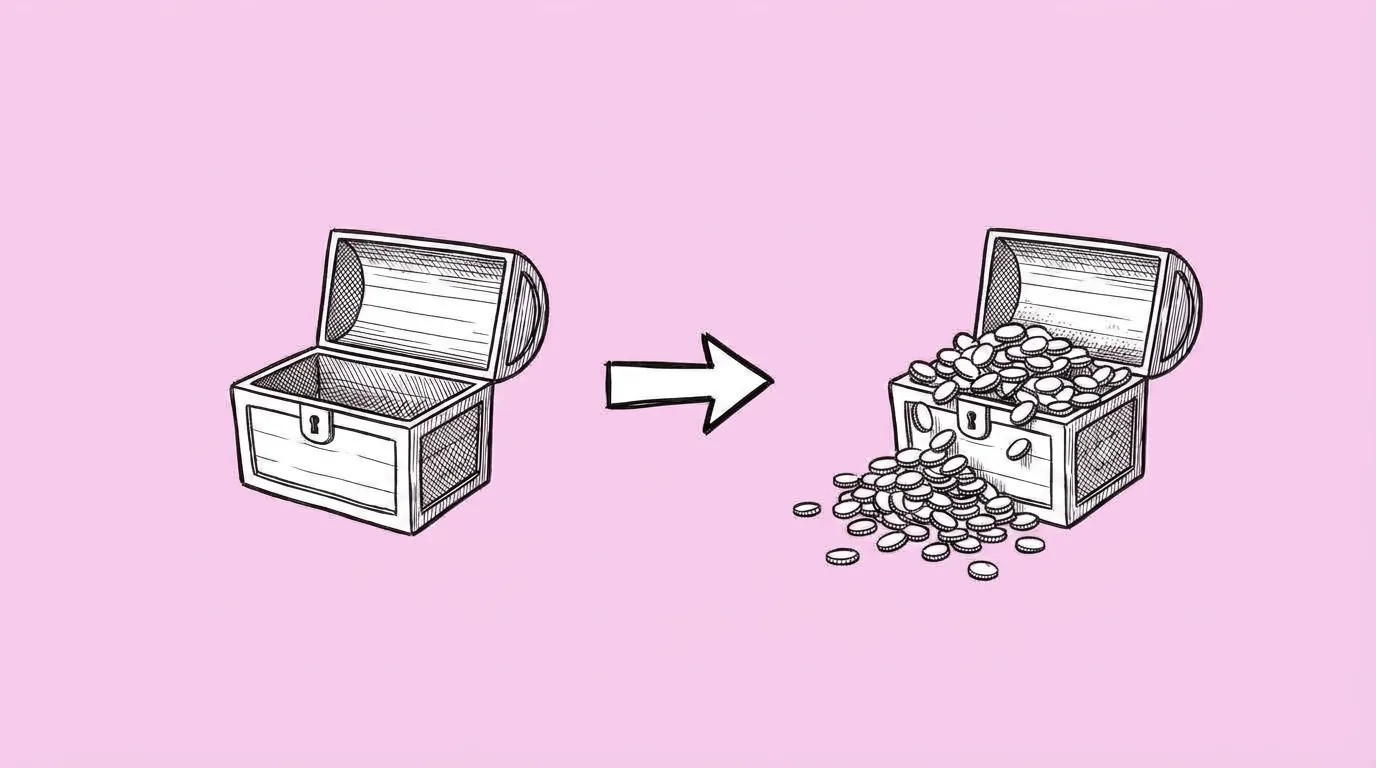
What to fill in
| Bracket | What to put | Example |
|---|---|---|
| [@currency name] | Your currency, called with @ so it stays on-model. | @gold coin |
| [structure] | One structure per image. | flying |
| [placement] | Where it goes, and where it must stay clear. | "bursting out of the chest toward the top left, leaving the bottom third clear for the price" |
When do you use it?
Every offer. A starter pack, a flash sale, a comeback bundle for lapsed players. The art may already exist, but the value isn't visible until the coins are in the scene. In LiveOps, the offer you don't test is the loss, and this prompt removes one reason an offer doesn't get tested: waiting on art.
What breaks, and how do you fix it?
The currency comes out off-model, with the wrong shape or symbol. The amount looks chaotic. Lighting doesn't match the scene.
- Call the currency with @. That keeps the shape and symbol right.
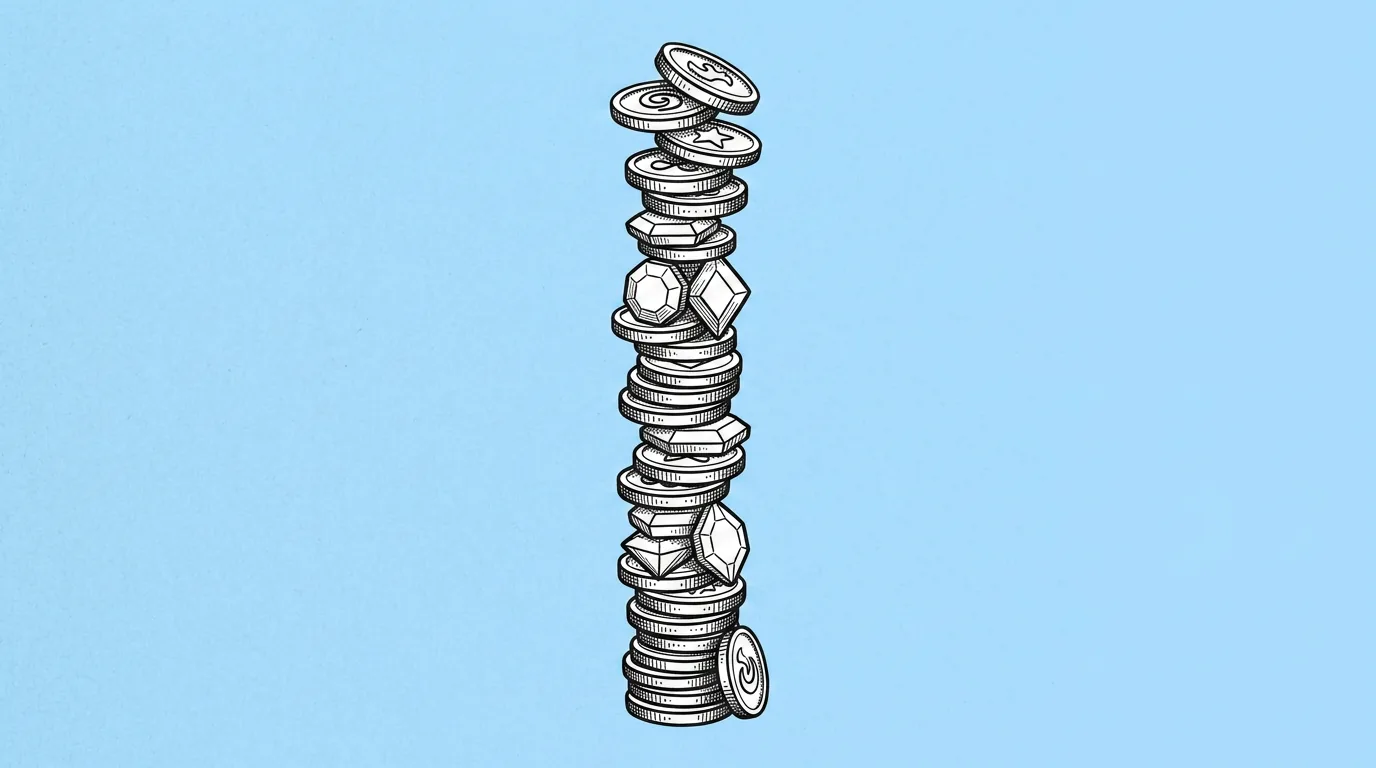
- Pick one structure. Scattered, flying or piled. Mixing them reads as chaos.
- Leave room for the price and CTA. Say where they'll go so the coins stay out of it.
- Save your offer layout as a skill. Every new offer gets the same treatment.
Variations to try
Add @[gold coin] and @[gem] to the attached image, piled in front of the character, gems on top, leaving the right side clear for text.
Add @[coin] to the attached image flying out of the slot machine toward the viewer, lit by the machine's lights.
FAQ
Does my currency need to be set up in Genie?
+
Yes. The prompt calls a currency the agent is familiar with, which is what keeps it on-model.
Can I control how much currency appears?
+
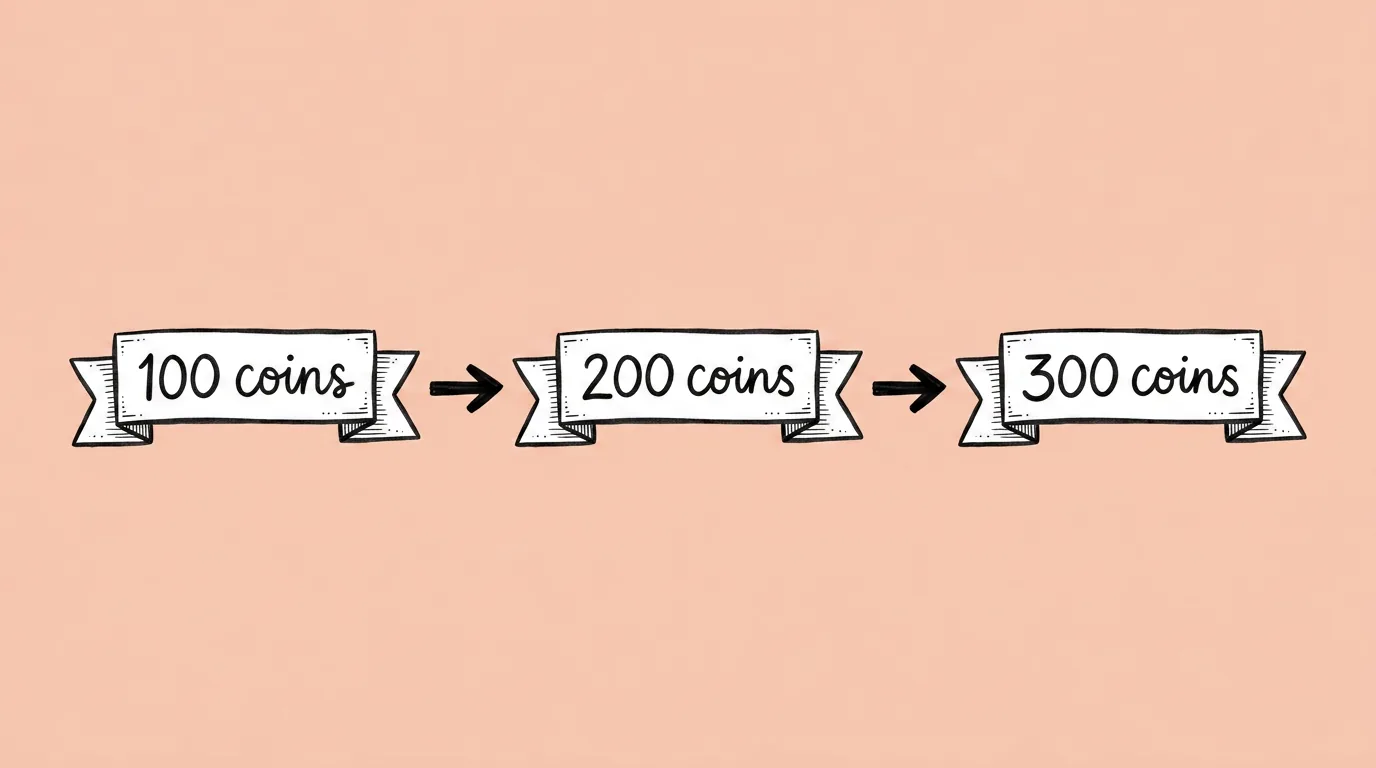
Yes. Add an amount ("about 20 coins") or a size ("a small handful", "a huge pile").
Will it change the rest of the image?
+
It shouldn't. If something shifts, add "keep everything else exactly the same".